How to connect a channel, and what to do when a post fails
Connect each social account once in Integrations. When a connection expires or a post fails, PQZ tells you why and how to fix it.
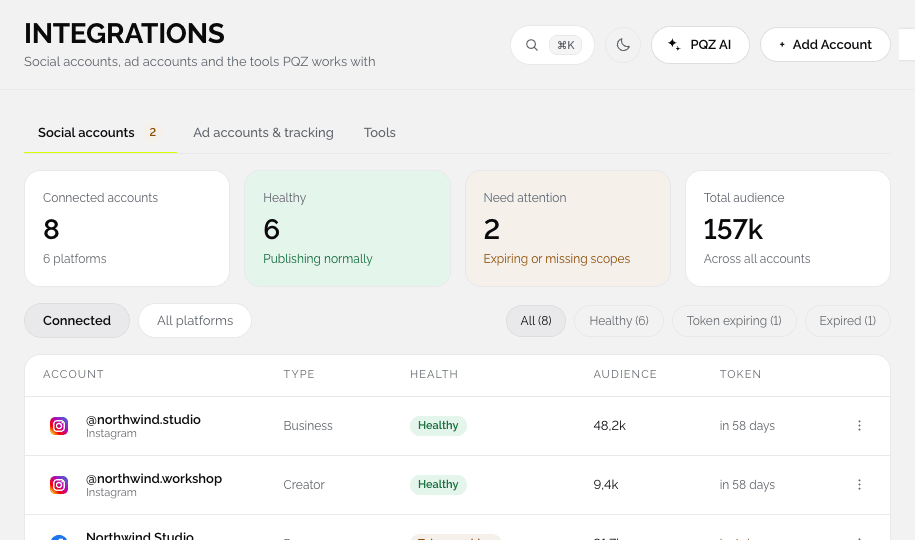
Connect a channel
- Open Set up › Integrations and stay on Social accounts.
- Choose the channel: Instagram, Facebook, Threads, LinkedIn, Pinterest, Bluesky, Mastodon, Telegram, Discord or Tumblr.
- Sign in on the channel's own page and grant the permissions PQZ asks for.
- Back in PQZ, the account appears with a health status.
Reconnect an expired account
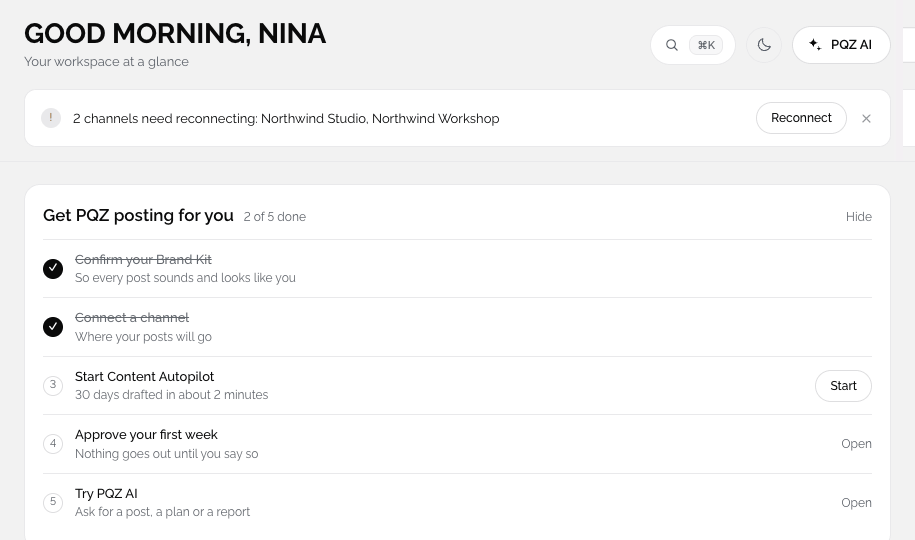
Channels expire access from time to time. PQZ warns you before it happens, and the dashboard shows which accounts need reconnecting with a Reconnect button. Click it, sign in again and the account is healthy.
When a post fails
- Open Content › Content Planner and switch to Queue. The toggle shows how many posts failed.
- Open the failed post to see the reason from the channel.
- Fix the cause, for example reconnect the account or shorten a video.
- Press Retry.
Common reasons
- The account needs reconnecting.
- The video is longer than the channel allows.
- The caption has more hashtags than the channel's limit.
- A permission was removed on the channel's side.
Quiet hours and the duplicate guard in Settings › Publishing can also stop a post on purpose. Check them if a post did not go out at the expected time.