How to approve, edit and remove brand facts
Facts are the statements PQZ may make about your business. Here is how to manage them so every post stays accurate.
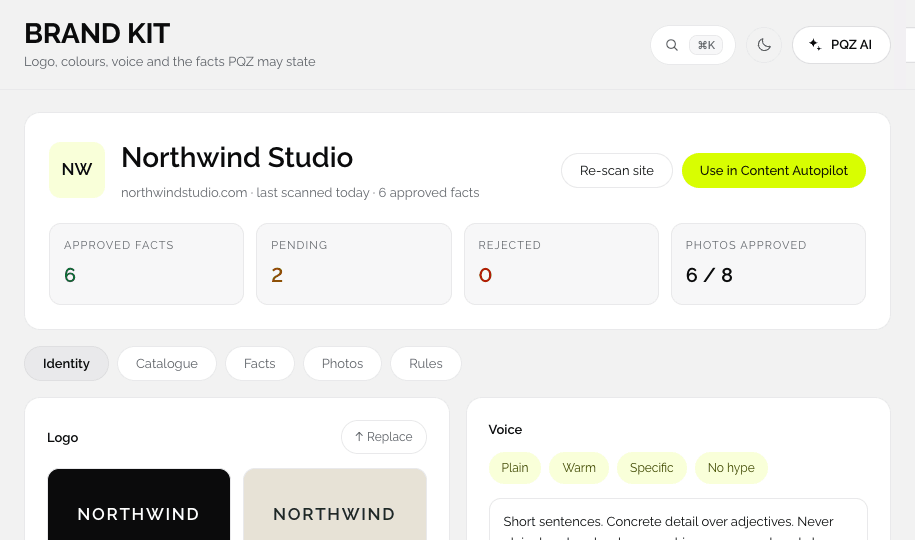
Where facts live
Open Set up › Brand Kit and choose Facts. You will see approved, pending and rejected facts, each with the page or document it came from.
Approve a fact
- Open a pending fact.
- Check its source.
- Edit the wording if needed.
- Approve it. It can now be used in posts, replies and ads.
Edit or remove a fact
Change the wording, or remove the fact entirely. New drafts from Content Autopilot, Social Inbox and Create Ad use the change straight away. Posts that are already scheduled keep their text, so search the Content Calendar for anything that mentions the old fact.
Reject a fact
Rejected facts are never used. They stay in the list so a re-scan does not bring them back as new.
Add a fact
- Add it by hand in the Brand Kit.
- Or upload a document, like a price list, and approve the facts it adds.
If a draft needs a fact you have not approved, PQZ asks you instead of guessing. Approve the fact and the draft updates.