Playbook: how a small team runs 30 days of social in PQZ
A walkthrough using Northwind Studio, the example workspace in the PQZ app: a furniture maker that also runs weekend woodworking workshops.
Example workspace · no customer results
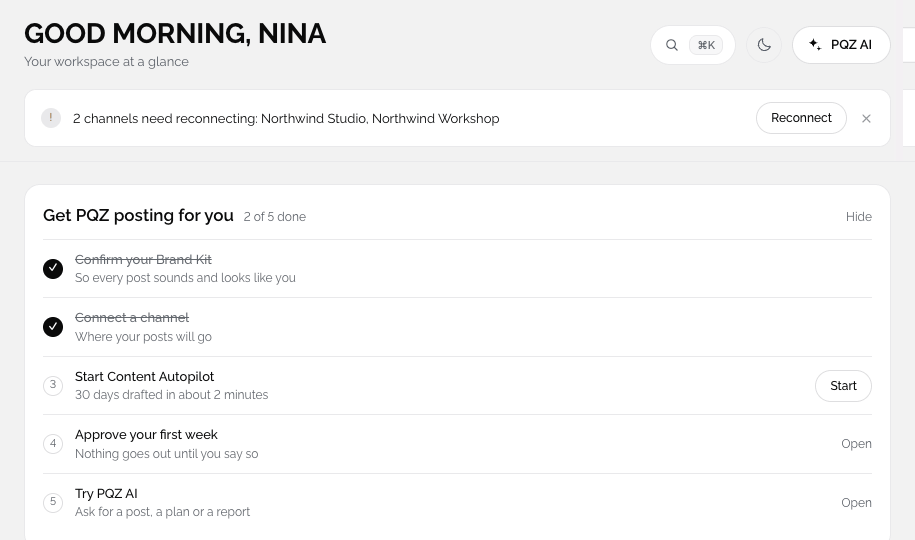
This playbook follows the workflow a small team would use, screen by screen. It uses the example data that ships with the app, so every screen here is one you will see yourself.
1. Build the Brand Kit
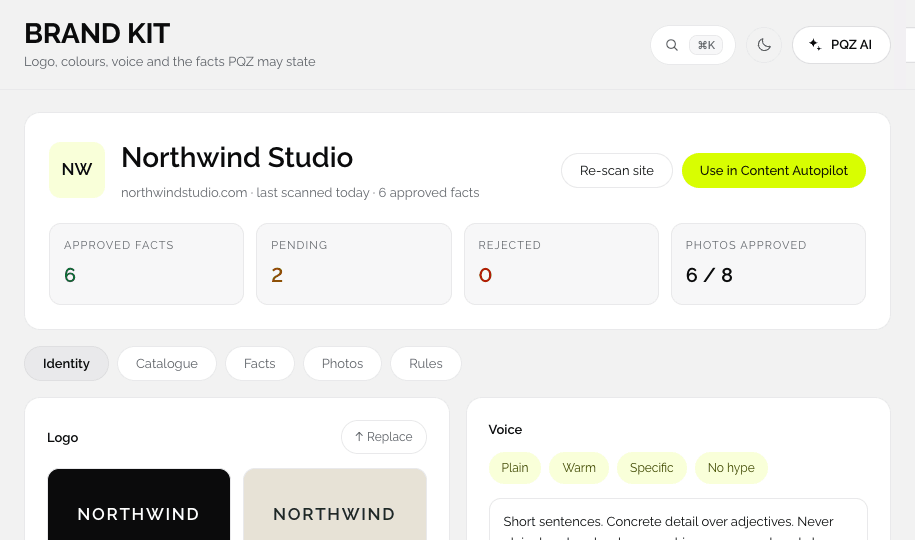
The team scans northwindstudio.com. The Brand Kit picks up the logo, the dark green and lime colours, the fonts, the products and the workshop dates. They approve the facts they want posts to use and reject one that was out of date.
2. Set the month in Content Autopilot
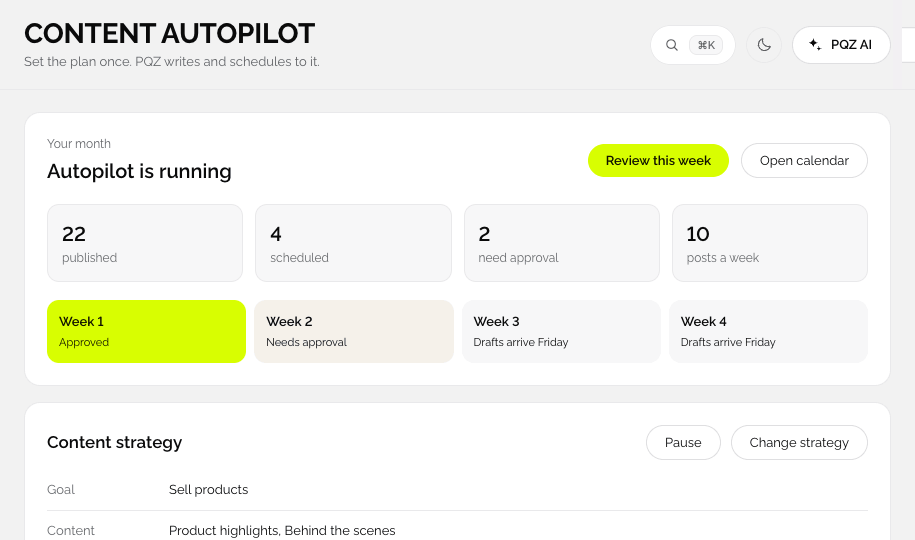
They set the goal to sales and bookings, pick four topics (products, workshops, behind the scenes and care tips) and a mix of single images, carousels and a short UGC video each week. Content Autopilot shows 48 posts across Instagram, Facebook, LinkedIn and Pinterest and the credits the month will use.
3. Make the images
For the new side table, one phone photo becomes a studio shot, a lifestyle scene and a sale poster in Create Image. Each result goes straight into a post.
4. Approve the month
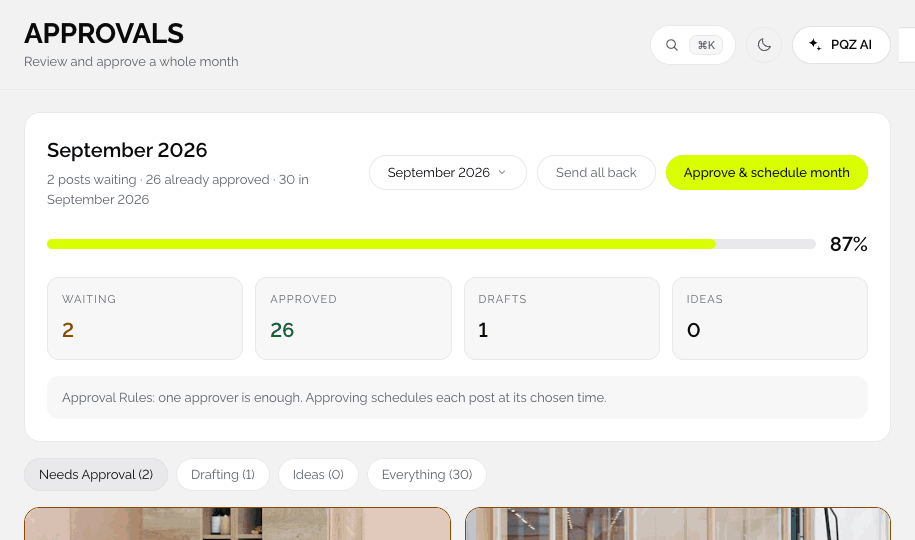
One person reads the month in Approvals, sends two posts back with notes, and approves the rest with Approve and schedule month.
5. Publish, reply and review
PQZ publishes at the scheduled times. Questions about workshop dates arrive in Social Inbox with suggested replies drawn from the approved facts. At the end of the month the team checks top posts in Social Analytics and adjusts the plan.
What to copy for your own team
- Approve facts carefully once; every draft depends on them.
- Read the month as a whole before reading captions.
- Keep one person responsible for final approval.
- Spend ten minutes a week in Social Inbox.